How to prepare CMA data for a bank loan
Example: Kaveri Office Supplies, a trading proprietorship owned by Amit Shah. Both are fictional.
1. Keep your records ready
Keep the previous years’ accounts beside you:
- Balance sheet (statement of financial position).
- Profit & loss account (P&L or income statement).
- Trading account (trading statement or the trading section of the P&L).
- Capital account (proprietor’s or partners’ capital statement).
Also keep stock, debtor, creditor and loan repayment details. Confirm which years your bank requires.
2. Enter business details
Open Munimly, sign in and select New CMA.
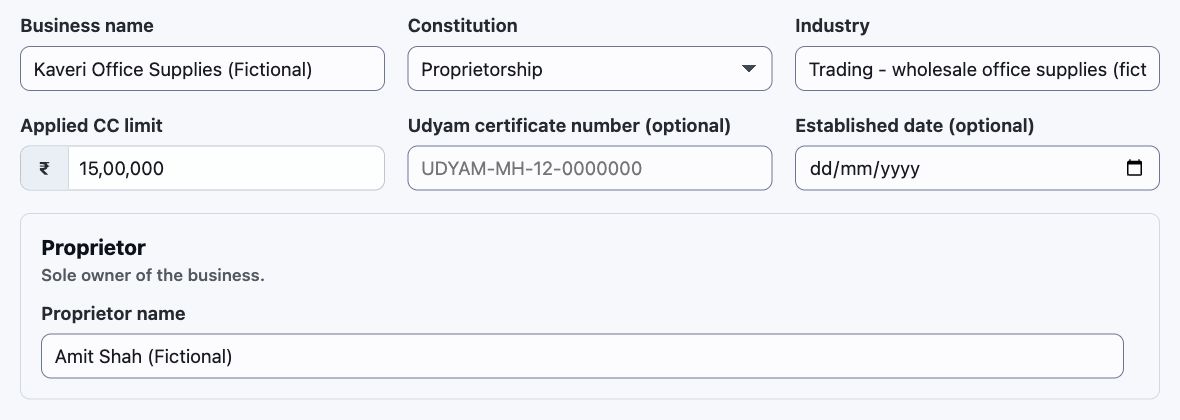
- Select the constitution: proprietorship, partnership, LLP or company.
- Enter the business name and industry, such as trading, services or manufacturing.
- Enter the applied CC limit: the cash-credit limit requested from the bank. For ₹15 lakh, type 1500000.
- Enter the Udyam certificate number and established date if available. These fields are optional.
- Enter the proprietor’s, partners’ or other key persons’ names as requested.
- Check the name and limit, then select Continue.
3. Enter historical accounts
- Select 1 year or 2 years under “Past years of accounts”. Choose None only if there are no historical accounts.
- Open the older year first. FY24–25 means 1 April 2024 to 31 March 2025.
- Open each account and copy that year’s figures from your records.
Enter rupees, not lakhs. For ₹20 lakh, type 2000000. Enter 0 only when the amount is zero. Check unknown amounts against the records.
Trading account
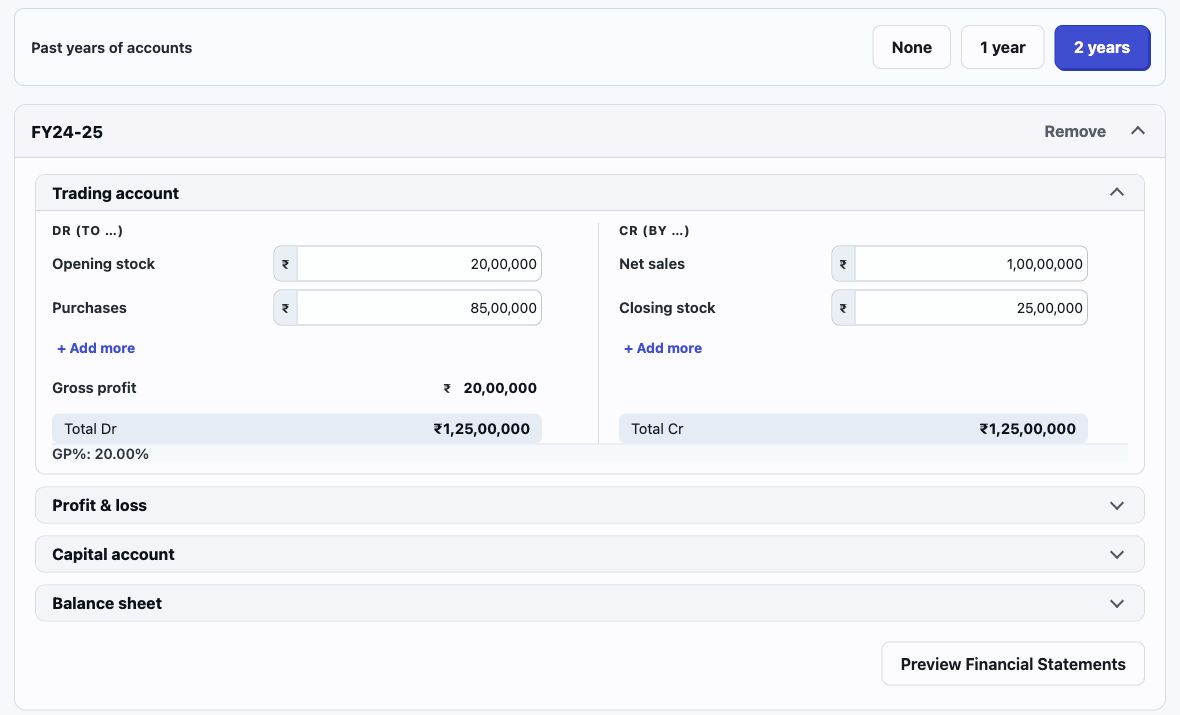
- Enter opening stock, purchases, net sales and closing stock. Net sales means sales less returns.
- Use + Add more for additional trading items. Follow the Dr/Cr side in your records.
- Do not enter the same expense again in P&L.
| Field | Amount |
|---|---|
| Opening stock | 2000000 |
| Purchases | 8500000 |
| Net sales | 10000000 |
| Closing stock | 2500000 |
The calculated gross profit should be ₹20,00,000 for this example.
Profit & loss account
- Gross profit is carried from the trading account. Do not enter it or sales again.
- Select + Add expenses for rent, salaries, depreciation and other recorded expenses. Enter each amount once.
- Enter CC interest and term-loan interest in their own fields. Do not repeat them in other expenses.
- Select + Add income for other income. Compare the calculated net profit with your P&L.
- Open Tax and cash-accrual adjustments where needed. The app treats proprietor income tax as drawings; check the treatment against your accounts.
Capital account
- Enter opening capital, fresh capital introduced and drawings from the capital account.
- Drawings are the owner’s personal withdrawals. Profit and closing capital are calculated automatically.
- For this example: ₹34 lakh opening capital + ₹10 lakh profit − ₹4 lakh drawings = ₹40 lakh closing capital.
Balance sheet
- Enter closing balances at the year end, not the year’s total receipts or payments.
- Sundry debtors: amounts customers owe. Sundry creditors: amounts owed to suppliers.
- Enter positive cash and bank balances under Cash & bank. Put CC/OD borrowing under Existing bank CC / OD.
- Split term loans into principal due within 12 months and principal due later. Principal repaid during the year excludes interest and differs from the closing balance.
- For this proprietorship, capital and inventory come from the capital account and closing stock. Enter the remaining assets and liabilities.
- Check that assets equal liabilities including capital. Correct the source entry; do not invent a balancing amount.
Select Preview Financial Statements and compare all four accounts with your records. Repeat for the next year. Check that opening stock and opening capital agree with the previous year’s closing balances, allowing for documented adjustments.
4. Set projections
- Confirm the as-on date and current-year estimate.
- Select the number of future projection years.
- Enter sales growth and gross-profit margin. GP margin is gross profit divided by sales, not markup on cost.
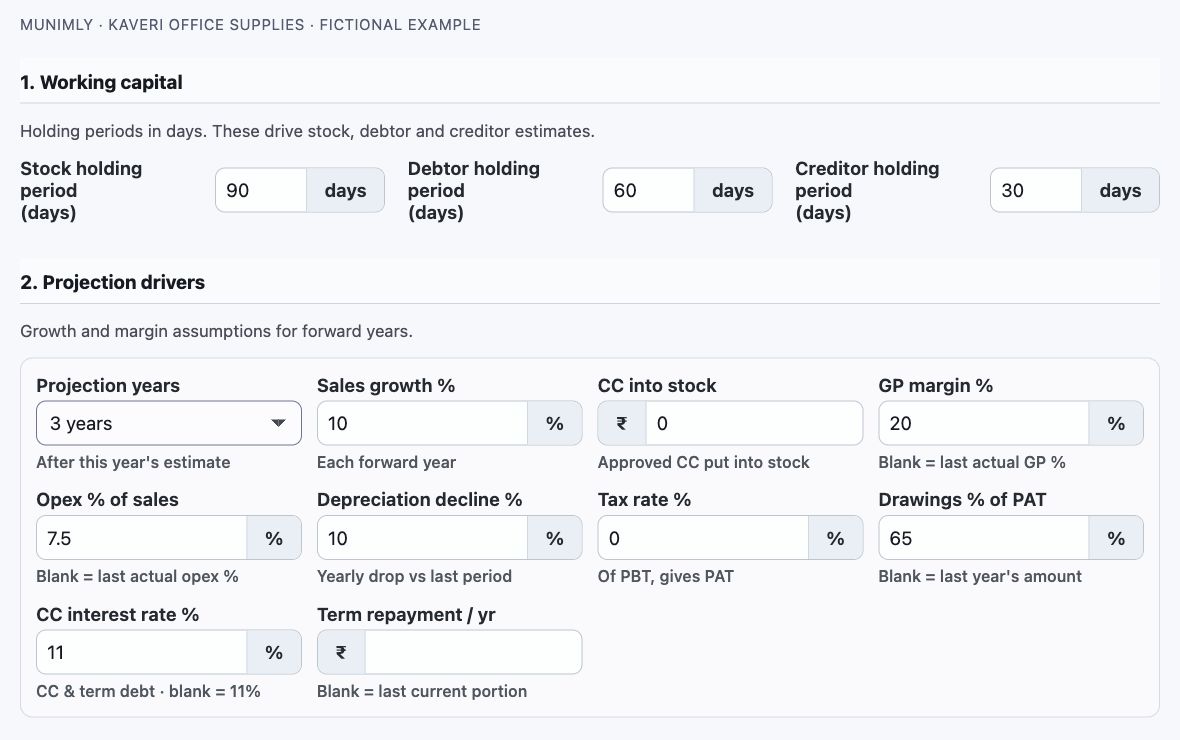
- Enter stock days, debtor days and creditor days: days goods remain in stock, customers take to pay, and the business takes to pay suppliers.
- Review expenses, drawings, depreciation, interest, tax and term-loan repayments.
This example uses 10% sales growth, 20% GP margin, 90 stock days, 60 debtor days, 30 creditor days and three projection years. Use assumptions supported by the business’s records.
5. Calculate and review
- Select Calculate.
- Review the projected statements, ratios and working-capital assessment.
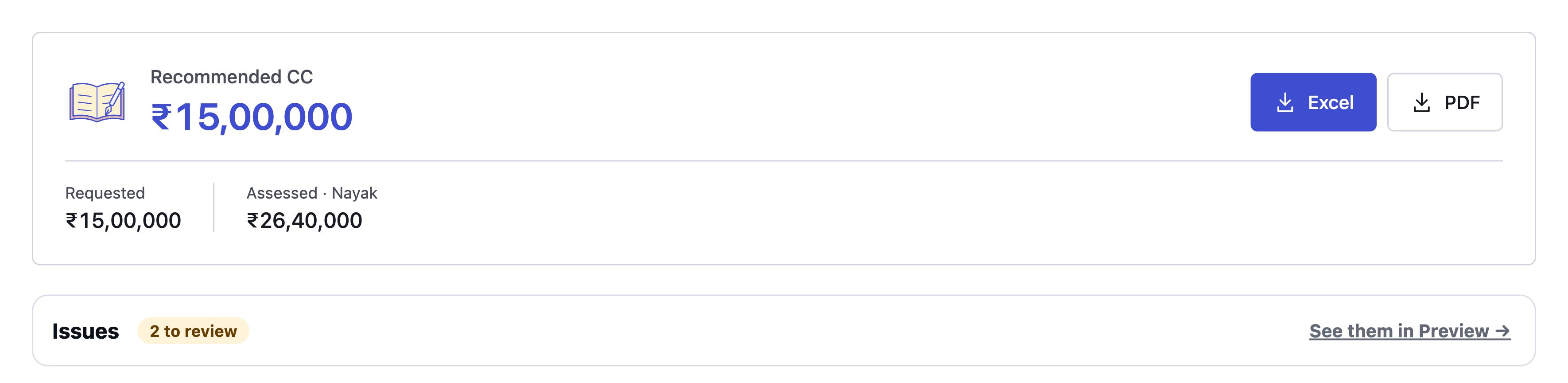
- Under Issues, select See them in Preview. Read each item, correct missing or incorrect inputs and calculate again.
The example shows ₹15 lakh recommended CC and ₹26.40 lakh assessed Nayak MPBF. Two review items remain: holding-period funding and DSCR marked N/A because there is no term repayment. A recommendation is not bank approval.
6. Download the report
- Check the business name, years, figures and unresolved issues.
- Select Download Excel or Download PDF.
- Open the downloaded file and verify its contents before submission.
The Excel export contains fixed values. To correct a report, change the inputs in Munimly, calculate again and download a new file.
Create CMA · Sample Excel · Sample PDF
CMA sample and assumptions · Projected balance-sheet example